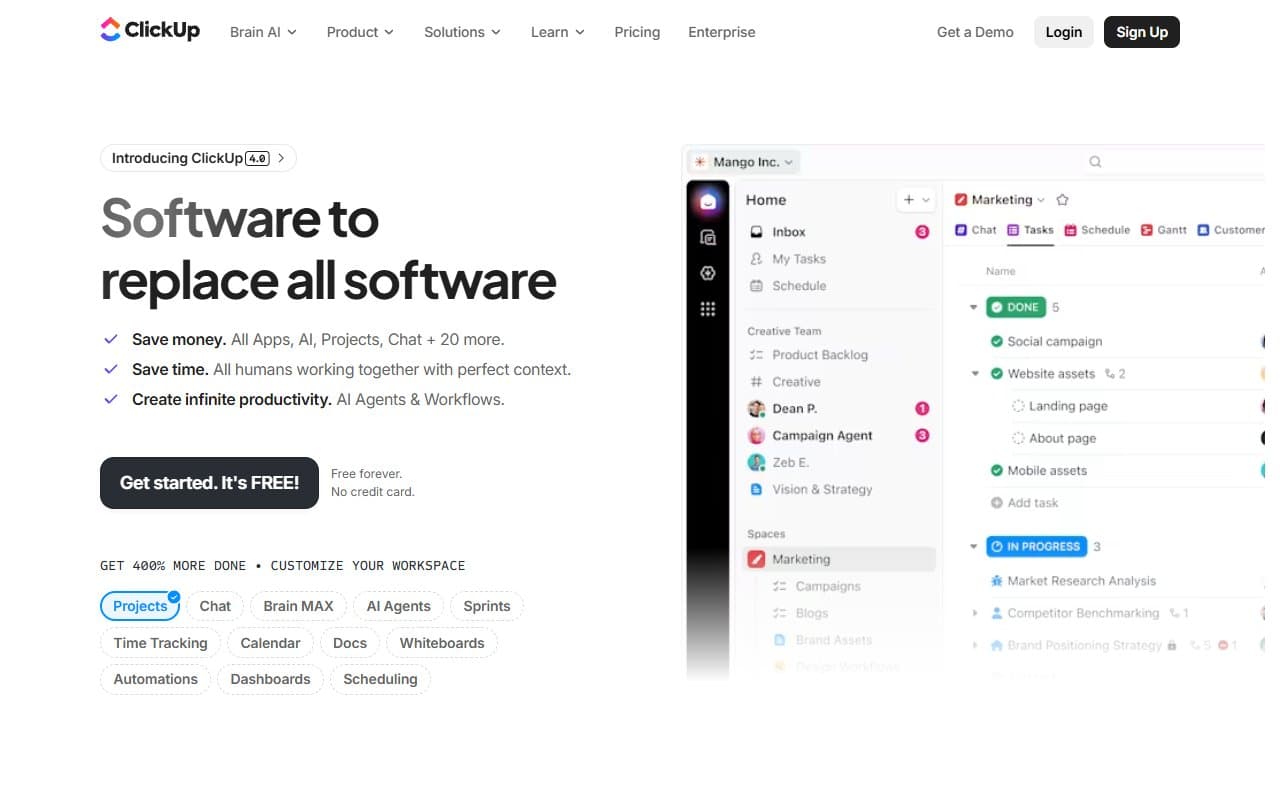
Who Should Use ClickUp
A 5-to-15-person agency juggling client projects across three different apps is exactly what ClickUp was built for. If you're paying for Asana, Slack, and separate time tracking, ClickUp replaces all three. That consolidation saves $200–$400 per year for a ten-person team, before you count the hours lost switching between platforms.
Remote teams spread across time zones get the most benefit. When decisions happen in different Slack channels and email threads, nothing gets done. ClickUp gives distributed teams a shared operating layer that actually works for async communication.
Skip it if you're a solo operator who just needs a to-do list — ClickUp will feel like arriving at a corner shop in a forklift. Also skip it if your team shuts down the moment they see more than four settings options. Know your team before you buy.
What It Actually Does
Take your task manager, shared Google Drive, time tracker, team chat, and goals spreadsheet. Collapse them into one workspace. That's ClickUp.
You create projects, assign tasks with due dates, track time, write documents, and set team goals without switching apps. The AI layer summarizes long comment threads so you don't read through fifteen messages to find the actual decision. Automations move tasks between stages automatically — when someone marks a sub-task complete, the main task moves to "In Review."
View work as lists, kanban boards, Gantt charts, or calendars depending on what makes sense. Unlike most tools that claim flexibility, ClickUp actually delivers it.
Pricing
Free Forever gives unlimited tasks and members but caps storage at 100MB and strips out most automations. Good for testing. Useless for real work.
Unlimited ($7/user/month) is where most small businesses should start. You get unlimited storage, integrations, and dashboards. At $7 per person, it beats paying for separate tools.
Business ($12/user/month) adds advanced time tracking and workload management. Agencies billing by the hour need this tier. Growing startups probably don't, at least not immediately.
Enterprise pricing is custom for 50+ person teams. Ignore it unless you're already at that scale.
What Works Well
The template library actually saves time. Most template libraries are graveyards of generic content. ClickUp's agency project template, sprint planning setup, and client onboarding workflow are production-ready. They save 2-3 hours of setup per project type.
Automations non-developers can build. Setting up "when task status changes to Complete, notify the client and move to Done" takes under ten minutes. The trigger-and-action interface makes sense to operations managers who've never touched code.
Time tracking that connects to actual work. Instead of logging hours against vague project codes, ClickUp ties time directly to specific tasks. Client billing and capacity planning become significantly more accurate.
What Does Not Work
The onboarding experience overwhelms new users. ClickUp greets you with so many options, views, and settings that teams often never get past setup. The flexibility that makes it valuable also means there's no obvious "start here" path. Budget a full week for configuration or expect your team to abandon it.
Notifications spiral out of control. Out of the box, ClickUp notifies you about everything — task comments, status changes, mentions, goal updates. The volume becomes noise within days. Fixing this requires manually tuning notification settings, which most users don't do until they're already exhausted. It should be smarter by default.
How It Compares
Asana is cleaner and easier to learn but costs more per user and doesn't include docs, chat, or time tracking. Choose Asana if your team is less technical and you want something running in a day. Choose ClickUp if you want to consolidate tools and don't mind the setup investment.
Monday.com has a better-looking interface and stronger CRM features, but pricing jumps quickly and minimum seat requirements push costs up for small teams. ClickUp wins on value for under-20-person teams.
Notion beats ClickUp on documentation and knowledge bases but is weaker on task management and has no real time tracking. If docs are your primary need, pick Notion. If task management is central, pick ClickUp.
The Verdict
If you're running an agency, startup, or remote team and currently pay for multiple tools to handle tasks, docs, and communication — switch to ClickUp. The $7 Unlimited tier replaces most of that stack and the template library gets you operational faster than building from scratch.
Budget one week for setup. It's not optional — skipping proper configuration is why most teams abandon the platform within two months.
If you need something running by Thursday with minimal setup, use Asana. If your team freezes when software presents choices, ClickUp will frustrate more than it helps.
For everyone else — the agency owner drowning in browser tabs, the startup ops lead holding five tools together with Slack messages — this solves the actual problem. ClickUp is what happens when someone finally built the all-in-one tool and made it work.
Common Questions
Is the free plan actually usable for a small team?
For testing, yes. For real work, no. The unlimited tasks and members are genuinely free, but the 100MB storage cap and stripped automations mean you'll hit the wall within months. Treat free as a trial.
How long does ClickUp take to set up properly?
A week. One person spends a few hours configuring workspace structure, importing existing work, setting up templates, and training the team. Teams that skip this abandon ClickUp within 60 days — not because it's bad, but because misconfigured ClickUp is actively confusing.
Can ClickUp replace Slack?
Partially. The built-in chat handles direct messages and project conversations well. What it doesn't replicate is Slack's casual, real-time culture — quick questions, random channels, integrations your team already uses. Some teams make the full switch. Others keep Slack for culture and use ClickUp for work.
Is ClickUp good for client-facing work?
Yes, with setup. You can create guest access so clients see only their project, which works well for agencies and consultants. The catch: clients occasionally find the interface confusing if they're not used to project management tools. A short walkthrough call when onboarding new clients prevents most problems.